
Direct Messages (DMs) are at the heart of Instagram communication. Whether you’re managing a personal account, creator profile, or a full-fledged business account, your inbox can quickly become overwhelming. Enter Instagram chat folders—a feature that brings order, structure, and efficiency to your messaging experience.
This guide will walk you through everything you need to know about Instagram chat folders in 2026, from setup to advanced organization strategies. By the end, you’ll know exactly how to organize Instagram messages like a pro, save time, and even improve customer relationships.
What Are Instagram Chat Folders?
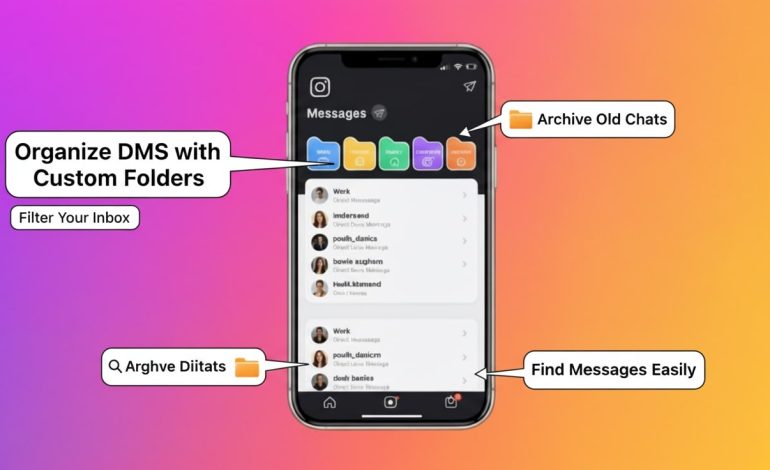
Instagram chat folders are a built-in feature that allows users to sort their messages into categories. Think of them as digital filing cabinets for your DMs. Instead of scrolling endlessly through one inbox, you can assign conversations to folders for quick access.
Common Folder Types
| Folder Type | Description | Best For |
| Primary | Messages you want to see first; notifications enabled | Close friends, VIP clients, priority leads |
| General | Non-urgent conversations; notifications off by default | Group chats, occasional contacts, low-priority work messages |
| Requests | Messages from people you don’t follow; must accept/reject | New client inquiries, strangers, potential collaborations |
| Custom Folders | User-created categories tailored to your workflow | Sales leads, customer support, influencer outreach, project management |
Note: As of 2026, Instagram allows custom folder creation for professional and creator accounts—making DM organization more powerful than ever.
Prerequisites: Setting Up Your Account
Before you can dive into Instagram folder management, you’ll need the right account setup.
- Update Instagram App
- Ensure you’re running the latest version (September 2025 update).
- Switch to a Professional Account
- Go to Settings → Account → Switch to Professional Account.
- Choose either Creator or Business.
- Enable Messaging Tools
- In Settings → Messages and Story Replies, turn on advanced features like Folders and Labels.
- Check Permissions
- If you manage a brand account with multiple admins, ensure everyone has access to Instagram business account messaging tools.
How to Create Instagram Chat Folders
Method 1: Using the Built-in Folders Feature
- Open Instagram and go to your DM inbox.
- You’ll see tabs: Primary, General, and Requests.
- Tap and hold on a conversation.
- Select Move to Folder → Choose Primary or General.
- Done! That chat is now neatly filed.
Method 2: Custom Folder Creation
If you’re running a professional account, you can create custom folders for deeper organization.
Step-by-Step Tutorial:
- Go to DM Inbox → Settings (gear icon).
- Tap Manage Folders → Create New Folder.
- Name your folder (e.g., Leads, VIP Clients, or Support).
- Choose a color or icon for easy recognition.
- Assign existing chats by tapping Move to Folder.
- For new chats, set rules:
- Example: All messages with keyword “Order” → go to Support Folder.
Advanced Organization Strategies
Once you’ve created folders, the real power lies in strategy.
- Priority Filtering: Keep urgent messages in Primary, sales inquiries in Leads, and collaborations in Projects.
- Keyword Triggers: Use auto-labels (2025 update) to route messages with terms like “pricing” or “booking.”
- Response Time Tiers:
- Primary = respond within 1 hour
- Leads = within 24 hours
- General = when convenient
Managing and Customizing Folders
You’re not stuck with defaults—Instagram lets you customize your folder system:
- Rename Folders: Long-press folder name → Edit.
- Reorder Folders: Drag and drop in settings.
- Merge Folders: Combine two related folders.
- Color Coding: Assign colors for instant recognition.
- Bulk Move Messages: Select multiple chats → Move to Folder.
Pro Tip: Review folders weekly to avoid losing critical conversations.
Troubleshooting Common Issues
Even with Instagram’s improvements, users encounter issues:
- Folders Not Showing Up
- Solution: Update app or switch to a professional account.
- Messages Stuck in Requests
- Solution: Accept manually, then move to desired folder.
- Custom Folder Option Missing
- Solution: Available only for business/creator accounts (as of 2025).
- Notifications Not Working
- Solution: Check folder-specific notification settings.
Alternative DM Organization Methods
If folders aren’t enough, try these extras:
- Instagram Labels (2025 Update): Tag chats with labels like “Hot Lead” or “Follow-up.”
- Third-Party Tools: Apps like Meta Business Suite or CRM integrations sync Instagram DMs with email or helpdesk tools.
- Saved Replies: Use quick responses to handle repetitive inquiries.
Business Benefits & ROI
Why should businesses care about Instagram DM folder management?
- Faster Response Times: Reduce missed leads.
- Improved Customer Service: Organize complaints vs. inquiries.
- Higher Conversion Rates: Prioritize sales-related DMs.
- Better Team Collaboration: Assign folders to different team members.
- ROI Impact: Streamlined messaging = more deals closed, happier customers.
Conclusion
By now, you know exactly how to organize Instagram direct messages like a pro using chat folders. Whether you’re an individual seeking clarity, a creator managing collaborations, or a business optimizing response times, Instagram DM folder management is the solution.
Next Steps:
- Update your app to the latest version.
- Switch to a professional account.
- Create folders for priority, leads, and support.
- Train your team to follow consistent workflows.
The result? A cleaner inbox, faster communication, and higher efficiency—all powered by Instagram chat folders.
FAQ about Instagram Chat Folders
Instagram chat folders are organizational tools that let you sort DMs into categories like Primary, General, Requests, or custom folders.
Go to DM Inbox → Settings → Manage Folders → Create New Folder. Name it, assign an icon, and move chats manually or set rules.
Yes. While Primary/General are available for all, custom folders require a business or creator account.
Yes. As of 2026, folders sync across mobile and Instagram Web, ensuring consistency.
Currently, you can create up to 10 custom folders per account.
Ensure you’ve updated to the September 2025 version and switched to a professional account.