
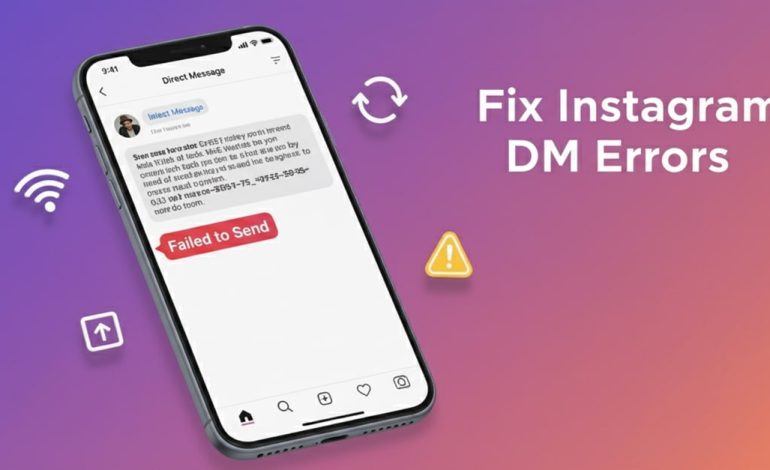

Ever tried sending an Instagram DM and immediately got the “Failed to Send” error? Frustrating, right? Whether you’re trying to share a reel, reply to a story, or simply chat with friends, Instagram messages not sending can break your flow and leave you wondering what went wrong.
This is one of the most common issues people run into on Instagram but don’t worry, it’s usually easy to fix. Most of the time, a simple connection hiccup, a small app glitch, or a temporary server hiccup is all that’s standing in the way of your message getting through.
This guide will walk you through why Instagram messages fail to send, what the error really means, and nine proven fixes that actually work. By the end, you’ll know exactly what to do the next time your DMs refuse to go through.
TL;DR: Quick Fixes for “Instagram DM Failed to Send”
| Fix | What It Solves | Best For |
| 1. Check Internet | Unstable Wi-Fi/data | If DMs are stuck “sending” |
| 2. Restart App | Temporary app bugs | If app freezes or lags |
| 3. Update Instagram | Removes old bugs | If app hasn’t been updated |
| 4. Logout/Login | Refreshes account session | If login expired |
| 5. Clear Cache (Android) | Removes corrupted files | If app keeps glitching |
| 6. Check Server Status | Confirms global outage | If everyone’s affected |
| 7. Check Account Status | Detects bans/restrictions | If only your account fails |
| 8. Try Instagram on web or another device | Rules out device issue | To isolate phone vs account problem |
| 9. Contact Support | Last resort option | When everything else is exhausted |
Signs Your Instagram DM Failed to Send
Before fixing the issue, let’s make sure the problem is real and not just a delay. Here’s how you know when Instagram messages are not sending:
- A red error message appears under your DM: “Failed to send.”
- The message is stuck with a grey pending circle and never delivers.
- Your DM disappears after hitting send, but the recipient never gets it.
- The status shows “sending…” forever without moving to “delivered.”
If you notice any of these signs, your DM didn’t go through — time to troubleshoot.
Why Do Instagram DMs Fail to Send?
Instagram shows the “Failed to Send” error when your message doesn’t go through to the recipient. This usually happens because of connection problems, temporary app glitches, or restrictions on your account. In other words, the app tried to deliver your DM but couldn’t complete the process.
The most common reasons why Instagram messages are not sending include:
- Weak or unstable internet connection – poor Wi-Fi or mobile data is the #1 cause.
- Temporary app glitches – Instagram sometimes bugs out and blocks outgoing messages.
- Outdated Instagram app version – missing updates can prevent smooth DM delivery.
- Corrupted app cache/data – stored files on your phone can interfere with messaging.
- Instagram server outage – when Instagram is down, no messages will go through.
- Account restrictions – spamming DMs, violating rules, or suspicious activity can limit your ability to send messages.
- Recipient blocking you – if you’re blocked, your DMs will always fail.
👉 If you see this error, it doesn’t always mean something is wrong with your account. In most cases, it’s temporary and can be fixed with quick steps like checking your internet, restarting the app, or updating Instagram.
9 Working Fixes for Instagram DM “Failed to Send”
Here’s a complete step-by-step breakdown of what actually works:
1) Check your internet connection
If a DM won’t send, start here — it’s the fastest and often the only fix you need.
Steps
- Open a browser and load any web page (e.g., a news article). If it loads slowly or times out, your connection is the issue.
- Switch between Wi-Fi and mobile data to see if one works better.
- Toggle Airplane Mode ON → OFF to reset mobile radios.
- If you’re on home Wi-Fi, restart your router (unplug 10 seconds, plug back).
- Try sending a text-only DM — if text goes through but media doesn’t, your connection isn’t stable enough for uploads.
2) Restart the Instagram app
A simple restart clears short-lived glitches and frees up temporary resources.
Steps
- Close Instagram completely (swipe it away from recent apps).
- Wait 5–10 seconds.
- Reopen Instagram and try to resend the DM.
3) Update Instagram to the latest version
App updates often contain bug fixes that resolve messaging problems.
Steps
- Open App Store (iPhone) or Google Play Store (Android).
- Search for Instagram.
- If Update is visible, tap it and wait for the installation.
- Reopen the app and test your DM.
4) Log out and log back in
This forces your session and authentication tokens to refresh.
Steps
- Open Instagram → Profile → Menu (☰) → Settings and privacy.
- Scroll down and tap Log out.
- Close the app.
- Reopen and log in again with your username and password.
- Try sending a DM.
5. Clear Instagram Cache and Data
If you can’t send Instagram DMs even after restarting, the app cache may be the problem.
- On Android:
- Go to Settings > Apps > Instagram > Storage > Clear Cache.
- You can also tap Clear Data (this logs you out but fixes deeper issues).
- On iPhone: you’ll need to uninstall/reinstall the app to clear cache.
6) Verify Instagram’s server status
Sometimes the “Failed to Send” error is global — Instagram is having a bad day.
Steps
- Visit outage reporting sites like Downdetector or search social media for “Instagram down.”
- If many recent reports show DM failures, it’s a server issue.
- Wait for official fixes; check Instagram’s official channels for updates.
7) Check your account status (ban or restriction)
If Instagram suspects spammy behavior, it may temporarily block DM sending.
Steps
- Open Instagram → Profile → Menu → Settings and privacy → Account status.
- Look for any warnings, restrictions, or policy notifications.
- If you see a restriction, follow the on-screen instructions; often you simply wait 24–48 hours.
- Avoid sending many repeated messages or copying-pasting the same text into multiple chats.
8) Try Instagram Web or another device
This isolates whether the issue is with your phone or your account.
Steps
- Go to instagram.com on a desktop or mobile browser and log in.
- Try sending a DM from the web interface.
- Alternatively, log into your account on a friend’s phone and try.
- If web or another device works, the issue is local to your phone/app.
9) Contact Instagram Support (Report a Problem)
When everything else fails, file a report so Instagram can investigate.
Steps
- Open Instagram → Profile → Menu → Help → Report a problem.
- Choose Something isn’t working.
- Write a clear description: include “Failed to Send”, the steps you tried, device model, OS version, and screenshots.
- Submit and wait — response times vary.
Extra tips & common mistakes
Do these
- Keep automatic updates on for apps and OS.
- Free up storage on your phone; low storage causes strange app behavior.
- Compress large videos before sending.
- Space out messages — don’t copy-paste identical texts quickly across chats.
Don’t do these
- Don’t spam retry the same message repeatedly — this can trigger rate limits.
- Don’t rely on third-party “DM boosters” — they can cause account flags.
- Don’t skip the simple steps (restart, update) and jump straight to reinstalling.
FAQ – Instagram DM Failed to Send & Messaging Issues
Most often it’s a connection or app problem: weak Wi-Fi, an outdated Instagram version, or temporary server issues.
Not necessarily. If someone blocked you, your messages usually won’t appear deliverable at all. “Failed to Send” more commonly indicates connection or app errors — or, in some cases, a temporary restriction on your account. Check Account Status in settings to confirm.
Yes, especially on Android. Clearing the app cache removes temporary files that can become corrupted and break the messaging feature. On iPhone, use Offload App or reinstall the app to achieve a similar effect.
This is a syncing glitch. Your app may have failed to receive confirmation from Instagram, but the server delivered the message to the recipient. If this happens often, clear cache (Android) or reinstall the app.
Sometimes the app misinterprets your connection or a background process on your phone is interfering. Try restarting the app and your phone, and check for updates to Instagram and your OS. If those steps don’t help, test on Instagram Web to isolate the issue.
Conclusion
Seeing “Instagram DM failed to send” is annoying, but most of the time it’s a short-lived bug or a connection hiccup. Work through the nine fixes above patiently: start with connection and app restarts, update the app, clear cache if on Android, and only contact support if nothing else helps.
If this helped, please share the article with someone stuck mid-DM. Got a stubborn case? Drop a comment with your device type (iPhone/Android), Instagram version, and exactly what you tried — I’ll help you debug it. Happy messaging!


